
Klinix User Guide
Klinix is a desktop app targeted towards general practitioners (GPs) to make their daily patient management faster and easier.
Klinix serves as a digital bridge for general practitioners in smaller clinics, streamlining their administrative tasks with a focus on patient management and tracking patient visit and medical histories.
Klinix combines the speed of typing commands with a simple, user-friendly interface so that they can quickly find and update patient information without a hassle.
Because the smoother your workflow, the better care you can provide.
Table of Contents
- Quick Start
- Input Parameters
- Features
- General Commands
- Patient Management
- Medical Report Management
- Medicine Usage Management
- Appointment Management
- FAQ
- Glossary
- Known Issues
- Command Summary
Quick Start
Install Java: Ensure you have Java
17or above installed on your computer.- Windows & Linux Users: Download and install Java from Oracle JDK 17 Archive Downloads.
- Mac Users: Install the precise JDK version prescribed here.
Download the Application: Get the latest
.jarfile from this release page. Version names may vary but the file name should beKlinix.jar.Prepare Your Folder: Create an empty folder that will serve as your home folder for Klinix and copy the downloaded
.jarfile into that folder.- Windows: Create a folder named
Klinixon your Desktop. - macOS/Linux: Create a folder named
Klinixin your home directory.
- Windows: Create a folder named
Run the Application:
- Open your command terminal.
- Navigate to the folder where you copied the
.jarfile:- Windows: Open Command Prompt, type
cdfollowed by the folder path, then press Enter. - macOS/Linux: Open Terminal, type
cdfollowed by the folder path, then press Enter.
- Windows: Open Command Prompt, type
- Run the application by entering the following command:
java -jar Klinix.jar
After a few seconds, a GUI will appear. Note that when you first start the app, there will be sample data. You may wish to clear the sample data using the clear command.
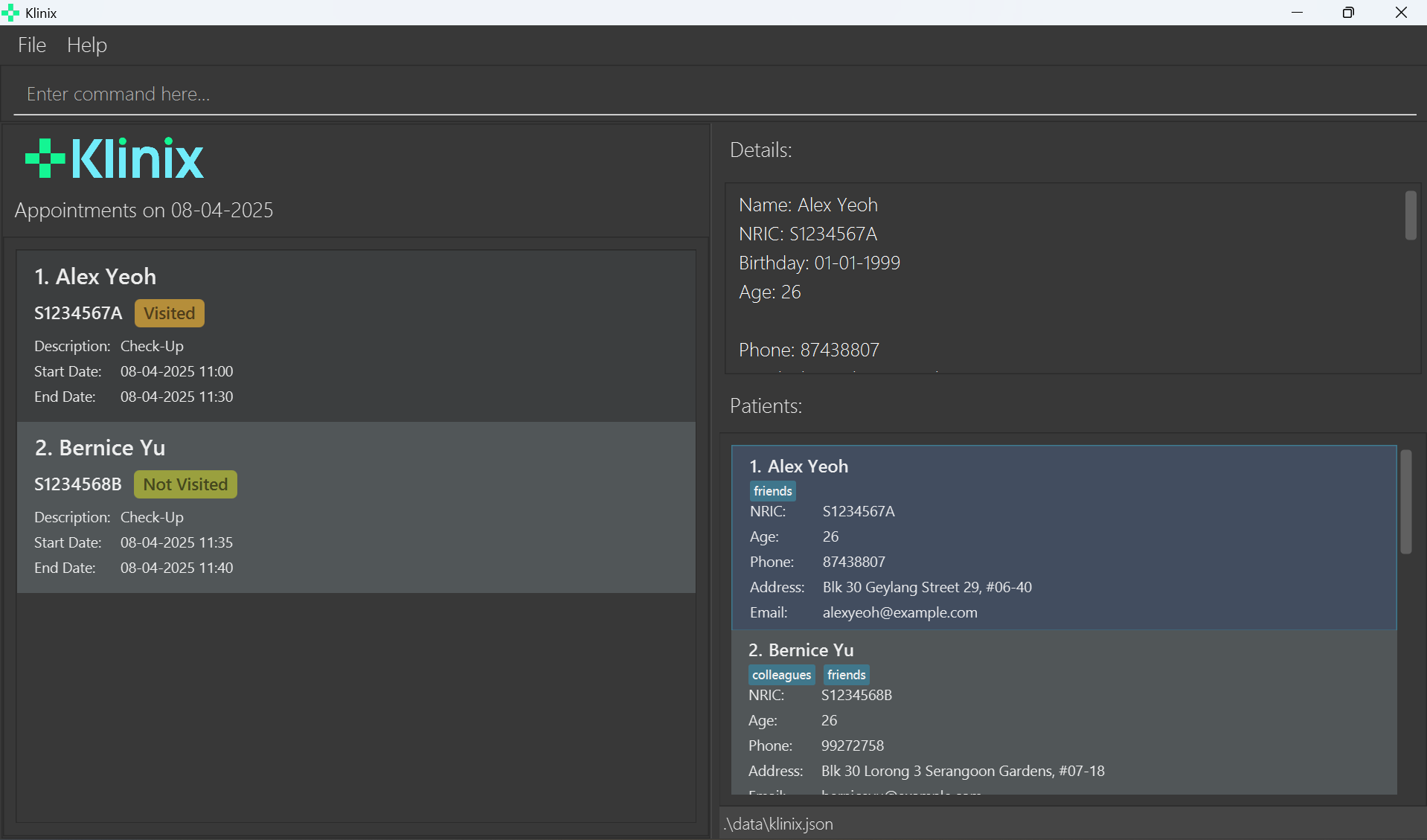
Using the Application:
- Type a command in the command box and press Enter to execute it. For example, typing
helpand pressing Enter will open the help window. - Here are some example commands you can try:
list: Lists all patients.add n/John Doe p/98765432 e/johnd@example.com ic/S0123456A b/10-10-2000 a/311, Clementi Ave 2, #02-25 t/friends t/owesMoney: Adds a new patient to Klinix.delete 3: Deletes the 3rd patient shown in the current list.clear: Deletes all patients.exit: Exits the app.
- Type a command in the command box and press Enter to execute it. For example, typing
More Information: Refer to the Features section below for detailed descriptions of each command.
Input parameters
Notes about parameters:
- Parameters will be in the form of
p/[PARAMETER]where p is the parameter symbol. For example, the commandadd n/John
n/is the parameter symbolJohnis the parameter
- All arguments are trimmed before processing:
- Arguments of prefixes
ic/,b/,p/,e/,from/,to/,/dateare trimmed by removing ALL WHITE SPACES - Remaining arguments are trimmed based on the Trimming Rules below.
- Arguments of prefixes
NRIC Consistency:
All NRIC fields (ic) follow the same 9-character alphanumeric rule.
Date Formats:
- dd-MM-yyyy for birthdates and medicine dates.
- dd-MM-yyyy HH:mm for appointments.
Patient Parameters
| Symbol | Parameter | Constraints |
|---|---|---|
n | NAME | - Must start with a letter, allowing spaces, apostrophes, periods, and hyphens between words; optional lowercase suffix ('s/o', 'd/o', 'c/o', '@') followed by another valid name. |
p | PHONE_NUMBER | - Must be a valid phone number (at least 3 digits and at most 20 digits, e.g., 999). - Multiple patients can share the same phone number, as it is used only for contact purposes (e.g., children sharing their parent's number). |
e | EMAIL | - Must follow the format local-part@domain and adhere to these constraints:1. The local-part must only contain alphanumeric characters and these special characters: +_.-. It cannot start or end with a special character.2. The domain consists of labels separated by periods, where each label:- Starts and ends with alphanumeric characters. - May contain hyphens between alphanumeric characters. - Ends with a label at least 2 characters long. |
ic | NRIC | - 9-character alphanumeric: Starts with one of the following uppercase letters: S, F, M, T, or G, followed by 7 digits (0-9), and ends with an uppercase letter (A-Z). Example: S1234567A. |
b | BIRTHDATE | - Format: dd-MM-yyyy (e.g. 01-01-1990).- Must not be a future date. |
a | ADDRESS | - No specific constraints. |
t | TAG | - Optional. - Can have multiple different tags (e.g. t/chronic t/followup). - Repeating the same tag (e.g. t/chronic t/chronic) has no effect — it will only be added once. - Tags must not contain spaces and must have at most 20 characters. For example, t/needs checkup is not allowed. Instead, use something like t/needs_checkup or t/checkup. |
Medical Report Parameters
| Symbol | Parameter | Constraints |
|---|---|---|
ic | PATIENT_NRIC | - Same as Patient NRIC (9-character alphanumeric). |
al | ALLERGIES | - Optional. Must contain at least one letter and does not include special symbols other than spaces, commas, and hyphens. |
ill | ILLNESSES | - Optional. Must contain at least one letter and does not include special symbols other than spaces, commas, and hyphens. |
sur | SURGERIES | - Optional. Must contain at least one letter and does not include special symbols other than spaces, commas, and hyphens. |
imm | IMMUNIZATIONS | - Optional. Must contain at least one letter and does not include special symbols other than spaces, commas, and hyphens. |
Medicine Usage Parameters
| Symbol | Parameter | Constraints |
|---|---|---|
ic | PATIENT_NRIC | - Same as Patient NRIC (9-character alphanumeric). |
n | MEDICINE_NAME | - Must start with an alphanumeric character. Following characters can be ()+,.', alphanumeric characters, and spaces. |
dos | DOSAGE | - Free-text (e.g. Two 500mg tablets, 4 times daily). |
from | START | - Format: dd-MM-yyyy (e.g. 23-02-2025). |
to | END | - Format: dd-MM-yyyy (e.g. 25-02-2025).- Must be after or equal to START. |
Note: Klinix considers two medicine usages from the same patient to be the same if they share the same name (case-insensitive) and have overlapping durations.
Appointment Parameters
| Symbol | Parameter | Constraints |
|---|---|---|
ic | PATIENT_NRIC | - Same as Patient NRIC (9-character alphanumeric). |
appt | DESCRIPTION | - 1–40 alphabetic characters (e.g. Dental Check-up). |
from | START | - Format: dd-MM-yyyy HH:mm (e.g. 22-02-2025 10:00). |
to | END | - Format: dd-MM-yyyy HH:mm (e.g. 22-02-2025 10:15).- Must be after START. |
General Parameters
| Symbol | Parameter | Constraints |
|---|---|---|
| NA | INDEX | - Positive integer (1, 2, 3, ...). - Must exist in the current displayed list. |
| NA | KEYWORD | - Non-empty string. |
date | DATE | - Format: dd-MM-yyyy (e.g. 22-03-2025). |
Input Trimming Rules
| Rule | Description | Example (Before → After) |
|---|---|---|
| Remove extra spaces | Trim leading/trailing spaces and reduce multiple spaces to one | " Vitamin C " → "Vitamin C" |
Apostrophes ' | No space before or after | "John ' s" → "John's" |
Right parenthesis ) | No space before, exactly one space after | "test )result" → "test) result" |
Left parenthesis ( | One space before, no space after | "Dose( 500mg )" → "Dose (500mg )" |
Hash # | One space before, no space after | "Tag#urgent" → "Tag #urgent" |
Comma , | No space before, one space after | "Apple ,Banana,Orange" → "Apple, Banana, Orange" |
Period . | No space before, one space after | "e . g . example" → "e.g. example" |
Plus + | No spaces before or after | "Vitamin C + Zinc" → "Vitamin C+Zinc" |
At sign @ | No spaces before or after | "user @ example . com" → "user@example. com" |
Colon : | No spaces before or after | "Time : 10AM" → "Time:10AM" |
Dash - | No spaces before or after | "2023 - 2024" → "2023-2024" |
| Final cleanup | Remove any remaining extra spaces | — |
Features
Notes about the command format:
Words in
UPPER_CASEare the parameters to be supplied by the user.
e.g. inadd n/NAME,NAMEis a parameter which can be used asadd n/John Doe.Items in square brackets are optional.
e.gn/NAME [t/TAG]can be used asn/John Doe t/friendor asn/John Doe.Items with
… after them can be used multiple times including zero times.
e.g.[t/TAG]…can be used as(i.e. 0 times),t/friend,t/friend t/familyetc.If provided, the index parameter must always appear first. All other parameters can follow in any order.
e.g. if the command specifiesn/NAME p/PHONE_NUMBER,p/PHONE_NUMBER n/NAMEis also acceptable.Extraneous parameters for commands that do not take in parameters (such as
help,list,exitandclear) will be ignored.
e.g. if the command specifieshelp 123, it will be interpreted ashelp.If you accidentally type an invalid prefix (e.g. tt/, all/) during command input, it may be consumed as part of the previous field's value.
If you are using a PDF version of this document, be careful when copying and pasting commands that span multiple lines as space characters surrounding line-breaks may be omitted when copied over to the application.
Viewing Patient details
You can view the details of a patient by clicking on their name in the displayed list. This will display all the details of the selected patient in the details window.
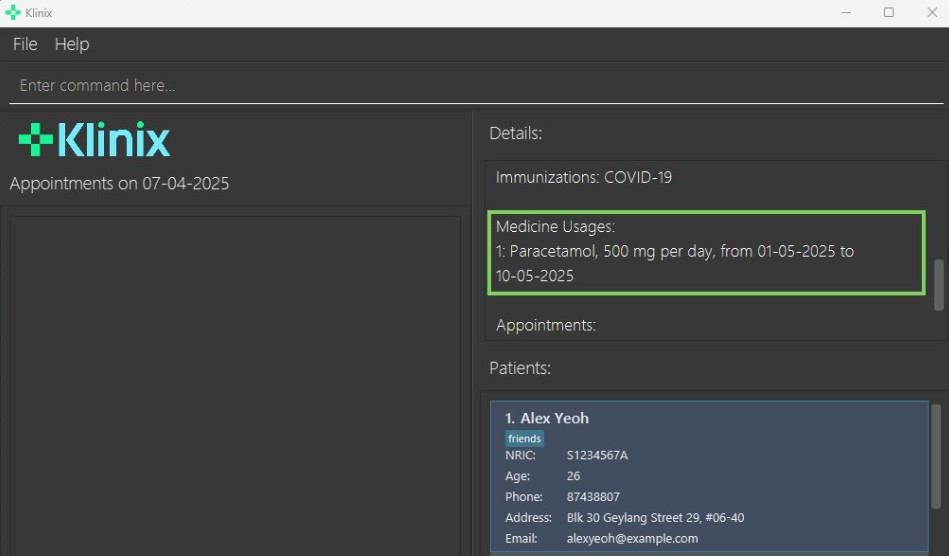
Viewing past commands:
You can scroll through your previously entered commands using the Up and Down arrow keys.
- Up Arrow: Scrolls to the previous command in the history.
- Down Arrow: Scrolls to the next command in the history.
This feature allows you to quickly reuse or edit previously entered commands without retyping them.
Example Usage:
- Enter a command, such as
list, and press Enter. - Press the Up Arrow key to bring up the
listcommand in the command box. - Press the Down Arrow key to navigate back to a more recent command.
The command history is saved only for the current session and will reset when the application is restarted.
Viewing help : help
Using this command shows you a message explaining how to access the help page.

Format: help
Extraneous parameters for commands that do not take in parameters (such as help, list, exit and clear) will be ignored.
e.g. if the command specifies help 123, it will be interpreted as help.
Clearing all Patient entries : clear
This command deletes all patient entries from Klinix.
Format: clear
Extraneous parameters for commands that do not take in parameters (such as help, list, exit and clear) will be ignored.
e.g. if the command specifies clear 123, it will be interpreted as clear.
Exiting the program : exit
Exits the program.
Format: exit
Extraneous parameters for commands that do not take in parameters (such as help, list, exit and clear) will be ignored.
e.g. if the command specifies exit 123, it will be interpreted as exit.
Saving the data
Klinix data is saved in your hard disk automatically after any command that changes the data. There is no need to save manually.
Editing the data file
Klinix data are saved automatically as a JSON file [JAR file location]/data/Klinix.json. Advanced users are welcome to update data directly by editing that data file.
Furthermore, certain edits can cause the Klinix to behave in unexpected ways (e.g. if a value entered is outside the acceptable range). Therefore, edit the data file only if you are confident that you can update it correctly.
Adding a Patient: add
Adds a patient to Klinix with the specified details.
Format: add n/NAME p/PHONE_NUMBER e/EMAIL ic/NRIC b/BIRTHDATE a/ADDRESS [t/TAG]…
- You can refer to the Patient Parameters section for detailed constraints on each parameter.
- a patient can have any number of tags (including 0)
Examples:
add n/John Doe p/98765432 e/johnd@example.com ic/S0123456A b/10-10-2000 a/John street, block 123, #01-01add n/Betsy Crowe t/friend e/betsycrowe@example.com ic/S9876543B b/01-01-1990 a/Newgate Prison p/1234567 t/criminal
Deleting a Patient : delete
Deletes the specified patient from Klinix.
Format 1: delete INDEX
- Deletes the patient at the specified
INDEX. - The index refers to the index number shown in the displayed patient list.
- The index must be a positive integer (e.g. 1, 2, 3, …)
Examples:
listfollowed bydelete 2deletes the 2nd patient in Klinix.find Betsyfollowed bydelete 1deletes the 1st patient in the results of thefindcommand.
Format 2: delete ic/NRIC
- Deletes the patient with the specified
NRIC. - The
NRICmust be valid. - The command works regardless of whether the patient with the specified NRIC is displayed or not.
You can use whichever format you find convenient, but not both at the same time. Otherwise, Klinix will give an error.
Example:
delete ic/S1234567Adeletes the patient with NRIC S1234567A from Klinix (if exists).
Editing a Patient : edit
Edits an existing patient in Klinix.
Format: edit INDEX [n/NAME] [p/PHONE] [e/EMAIL] [ic/NRIC] [b/BIRTHDATE] [a/ADDRESS] [t/TAG]..
Parameter:
INDEX: The index of the patient in the displayed list.
For detailed constraints on all other parameters (NAME, PHONE, EMAIL, NRIC, BIRTHDATE, ADDRESS, TAG), refer to the Patient Parameters section. These parameters represent the fields of the patient that you can edit.
- Edits the patient at the specified
INDEX. The index refers to the index number shown in the displayed patient list. The index must be a positive integer 1, 2, 3, … - At least one of the optional fields must be provided.
- Existing values will be updated to the input values.
- When editing tags, the existing tags of the patient will be removed. i.e adding of tags is not cumulative.
- You can remove all the patient’s tags by typing
t/without specifying any tags after it.
Examples:
edit 1 p/91234567 e/johndoe@example.comEdits the phone number and email address of the 1st patient to be91234567andjohndoe@example.comrespectively.edit 2 n/Betsy Crower t/Edits the name of the 2nd patient to beBetsy Crowerand clears all existing tags.
Listing all Patients : list
Shows a list of all patients in Klinix.
Format: list
Extraneous parameters for commands that do not take in parameters (such as help, list, exit and clear) will be ignored.
e.g. if the command specifies list 123, it will be interpreted as list.
Finding Patients by keywords: find
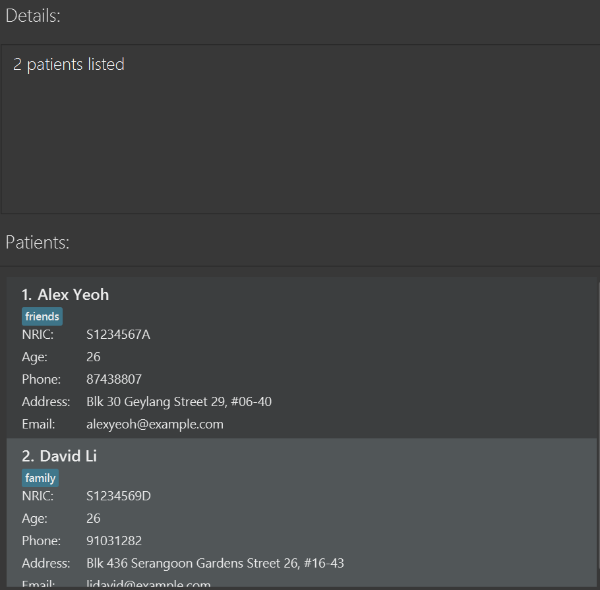
Finds patients whose names contain the specified keyword(s). To help you spend less time on boring searching, we also supports partial search, where you can find patients with segments of their name.
Format: find KEYWORD [MORE_KEYWORDS]
- The search is case-insensitive. e.g.
hanswill matchHans - The order of the keywords does not matter. e.g.
Hans Bowill matchBo Hans - Only the name is searched.
- Partial words will be matched e.g.
Hawill matchHans - Patients matching at least one keyword will be returned (i.e.
ORsearch). e.g.Hans Bowill returnHans Gruber,Bo Yang
Examples:
find JohreturnsjohnandJohn Doefind alex davidreturnsAlex Yeoh,David Li
Adding a Medical Report: addmr
This command adds a new medical report to a patient's record.
Format: addmr ic/NRIC [al/ALLERGIES] [ill/ILLNESSES] [sur/SURGERIES] [imm/IMMUNIZATIONS]
Examples:
addmr ic/S1234567A al/Penicillin ill/Flu sur/Appendectomy imm/Flu Vaccineaddmr ic/T0260144G al/None ill/None sur/None imm/Noneaddmr ic/S1234567A al/Peanuts, Penicillin ill/None sur/Appendectomy imm/Flu Vaccine, Hepatitis B
Note: To list more than one item in the fields, separate them with commas. If a field is not applicable,
you can leave it empty or set to None.
Refer to the Medical Report Parameters section for constraints on each parameter.
- The patient with the NRIC you give must exist in Klinix, otherwise Klinix will show an error message.
- If the patient already has a medical report, adding a new one will overwrite the existing one.
- Fields that are blank will be set to
Noneby default. - At least one of the medical fields (allergies, illnesses, surgeries, immunizations) must be provided, else Klinix will show an error message.
Deleting a Medical Report: deletemr
This command deletes a patient's existing medical report.
Format 1: deletemr ic/NRIC
Parameter:
NRIC: The NRIC of the patient. It must be a valid NRIC number (Same as Patient NRIC).
Examples:
deletemr ic/S1234567Adeletemr ic/T0260144G
Format 2: deletemr INDEX
Parameter:
INDEX: The index of the patient in the displayed list. It must be a positive integer 1, 2, 3, ...
Example:
deletemr 1
- Deleting a medical report will set all medical fields to
None. - The patient with the given NRIC, or at the specified index must exist, otherwise Klinix will show an error message.
- If the patient does not have an existing medical report (i.e. all fields are
None), Klinix will show an error message.
Adding a Medicine Usage Record: addmu
This command allows you to add a new medicine usage record as part of a patient’s medical history or medical needs.
Format: addmu ic/NRIC n/MEDICINE_NAME dos/DOSAGE from/START to/END
Note: Refer to the Medicine Usage Parameters section for constraints on each parameter.
Examples:
addmu ic/T0260144G n/Paracetamol dos/Two 500mg tablets, 4 times in 24 hours from/23-02-2025 to/25-02-2025addmu ic/S1234567A n/Panadol Extra dos/Two 250mg tablets, once per day from/01-03-2025 to/05-03-2025
- The patient with the NRIC you give must exist in Klinix, otherwise Klinix will show an error message.
- Two medicine usages have the same medicine name if they are equal, ignoring case.
- Two medicine usage records from the same patient are overlapping if they have the same name and overlapping duration. Klinix will detect such overlapping instances and give an error message when you try to add them.
STARTandENDmust be in the format ofdd-MM-yyyySTARTshould be before (or on the same day as)ENDSTARTshould not be before the patient's birthday.
Deleting a Medicine Usage Record: deletemu
This command deletes a particular medicine usage record of a patient's medical history.
Format: deletemu INDEX ic/NRIC
Parameters:
INDEX: The index of the medicine usage record in the displayed medicine usage list. It must be a positive integer.NRIC: The NRIC of the patient. It must be a valid NRIC number (Same as Patient NRIC).
Example:
deletemu 2 ic/S1234567Awill delete the 2nd medicine usage record from medical history of patient with NRIC S1234567A.
Clearing all Medicine Usage Records: clearmu
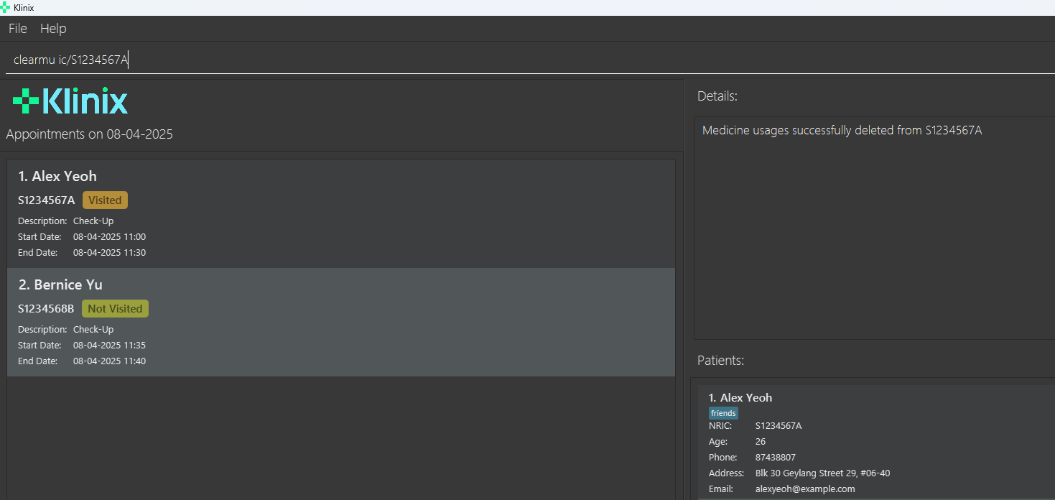
You can delete all medicine usage records of a patient's medical history using this command.
Format 1: clearmu ic/NRIC
- Deletes all medicine usages from the patient with the specified
NRIC.
Parameter:
NRIC: The NRIC of the patient. It must be a valid NRIC number (Same as Patient NRIC).
Example:
clearmu ic/S1234567A
Format 2: clearmu INDEX
- Deletes all medicine usages from the patient at the specified
INDEX.
Parameter:
INDEX: The index number shown in the displayed patient list. It must be a positive integer (e.g. 1, 2, 3, ...)
Example:
clearmu 3
Note: You can use whichever format you find convenient, but not both at the same time. Otherwise, Klinix will give an error.
The patient with the NRIC you give must exist in Klinix, otherwise Klinix will show an error message.
Finding Medicine Usage Records by medicine names: findmu
Finds patients whose medicine usages contain the specified medicine name(s).
Format: findmu KEYWORDS [MORE_KEYWORDS]
Example: findmu Paracetamol Amoxicillin
Note: findmu supports partial match similar to the partial search in the find command.
Adding an Appointment: addappt
Adds a new appointment to the patient.
Format: addappt ic/NRIC appt/DESCRIPTION from/START to/END
Example:
addappt ic/S1234567A appt/Check-up from/22-02-2025 10:00 to/23-02-2025 10:15
Refer to the Appointment Parameters for constraints on the parameters.
STARTandENDmust be in the format ofdd-MM-yyyy HH:mm- The patient with the NRIC you give must exist in Klinix, otherwise Klinix will show an error message.
- Appointment added must not overlap the duration of existing appointments. Klinix will detect such overlapping instances and give an error message when you try to add them.
Deleting an Appointment: deleteappt
Deletes the specified appointment from the patient.
Format: deleteappt INDEX ic/NRIC
Parameters:
INDEX: The index of the appointment in the displayed list of appointments in the patient details section. It must be a positive integer.NRIC: The NRIC of the patient. It must be a valid NRIC number (Same as Patient NRIC).
Example:
deleteappt 2 ic/S1234567A
- The patient with the NRIC you give must exist in Klinix, otherwise Klinix will show an error message.
- The index given must also be valid, a positive integer and within the appointment list size.
Clearing all Appointments: clearappt
Deletes the list of appointments of a specified patient.
Format 1: clearappt ic/NRIC
Parameter:
NRIC: The NRIC of the patient. It must be a valid NRIC number (Same as Patient NRIC).
Example:
clearappt ic/S1234567Adeletes the list of appointments from the patient with NRIC S1234567A.
Format 2: clearappt INDEX
Parameter:
INDEX: The index of the patient shown in the displayed patient list. It must be a positive integer 1, 2, 3, ...
Example:
clearappt 1deletes the list of appointments from the first patient displayed.
The patient with the given NRIC or the given index must exist, otherwise Klinix will show an error message.
Otherwise, Klinix will give an error.
Marking an Appointment: markappt
Marks an appointment as visited.
Format: markappt INDEX ic/NRIC
Parameters:
INDEX: The index of the appointment in the patient. It must be a positive integer.NRIC: The NRIC of the patient. It must be a valid NRIC number.
Examples:
markappt 2 ic/S1234567Amarkappt 1 ic/T0260144G
The patient with the given NRIC or the given index must exist, otherwise Klinix will show an error message.
We allow marking of appointments even if the appointment is not in the past.
This is to allow for more flexibility in how you want to mark your appointments.
For example, you can mark an appointment as visited before the appointment time if the patient has arrived early.
Unmarking an Appointment: unmarkappt
Unmarks an appointment as not visited.
Format: unmarkappt INDEX ic/NRIC
Parameters:
INDEX: The index of the appointment in the patient details. It must be a positive integer.NRIC: The NRIC of the patient. It must be a valid NRIC number.
Examples:
unmarkappt 2 ic/S1234567Aunmarkappt 1 ic/T0260144G
The patient with the given NRIC or the given index must exist, otherwise Klinix will show an error message.
Viewing Appointments that start on specific date: appton
Displays all appointments starting on a specific date.
Format: appton date/DATE
Parameter:
DATE: The date to view appointments starting on a specific date. It must be in the formatdd-MM-yyyy.
Examples: appton date/22-03-2025
FAQ
Q: How do I transfer my data to another computer?
A: Install Klinix in the other computer and overwrite its data file with the old data file from your previous Klinix home folder.
Q: How do I edit an appointment or medicine usage record since there is no command for it?
A: We suggest deleting the existing appointment with deleteappt command first before using addappt command to create a new appointment with the edited details. The same solution applies to edit a medicine usage record.
Glossary
- Command Line Interface (CLI) - A user interface where individuals interact with a computer or software by typing text-based commands. Instead of using icons or buttons, users enter specific instructions in a terminal or command prompt to execute tasks.
- Graphical User Interface (GUI) - A user interface that enables users to interact with electronic devices through visual elements like icons, buttons, and windows, rather than through text-based commands. GUIs simplify navigation and usage of software applications through a visual approach.
- Hard Disk Drive (HDD) - A storage device within a computer that utilizes rotating magnetic disks to read and write data. It is primarily used for long-term storage of files, applications, and the operating system.
- NRIC (National Registration Identity Card) – A unique identification number assigned to citizens and residents.
- Medical Report – A document containing a patient's medical history, including illnesses, treatments, and surgeries.
- Medicine Usage Record – A record of medications prescribed to a patient, including dosage and duration.
- Overlapping Appointment – When a new appointment conflicts with an existing one in terms of time and date.
- Deletion Confirmation – A message displayed when a record is successfully removed from the system.
- Patient: An individual who receives medical care or consultation from a general practitioner (GP) and has information managed within Klinix.
Known issues
- When using multiple screens, if you move the application to a secondary screen, and later switch to using only the primary screen, the GUI will open off-screen. The remedy is to delete the
preferences.jsonfile created by the application before running the application again. - If you minimize the Help Window and then run the
helpcommand (or use theHelpmenu, or the keyboard shortcutF1) again, the original Help Window will remain minimized, and no new Help Window will appear. The remedy is to manually restore the minimized Help Window.
Command summary
| Action | Format, Examples |
|---|---|
| Add | add n/NAME p/PHONE_NUMBER ic/NRIC e/EMAIL b/BIRTHDATE a/ADDRESS [t/TAG]… e.g. add n/John Dane p/98471649 ic/S0123459P e/johndane@example.com b/10-10-2000 a/John street, block 123, #01-02 |
| Add Appointment | addappt ic/NRIC appt/DESCRIPTION from/START to/END e.g. addappt ic/T0260144G appt/Check-Up from/22-02-2025 10:00 to/23-02-2025 10:15 |
| Add Medical Report | addmr ic/NRIC [al/ALLERGIES] [ill/ILLNESSES] [sur/SURGERIES] [imm/IMMUNIZATIONS] e.g. addmr ic/S1234567A al/Penicillin ill/Flu sur/Appendectomy imm/Flu Vaccine |
| Add Medicine Usage | addmu ic/NRIC n/MEDICINE_NAME dos/DOSAGE from/START to/END e.g. addmu ic/T0260144G n/Paracetamol dos/Two 500mg tablets, 4 times in 24 hours from/23-02-2025 to/25-02-2025 |
| Clear | clear |
| Clear Appointments | Format 1: clearappt ic/NRIC e.g. clearappt ic/S1234567A Format 2: clearappt INDEX e.g. clearappt 2 |
| Clear Medicine Usages | Format 1: clearmu ic/NRIC e.g. clearmu ic/S1234567A Format 2: clearmu INDEX e.g. clearmu 1 |
| Delete | Format 1: delete INDEXe.g. delete 3 Format 2: delete ic/NRIC e.g. delete ic/S1234567A |
| Delete Appointment | deleteappt INDEX ic/NRIC e.g. deleteappt 3 ic/S1234567A |
| Delete Medical Report | Format 1: deletemr ic/NRIC e.g. deletemr ic/S1234567B Format 2: deletemr INDEX e.g. deletemr 3 |
| Delete Medicine Usage | deletemu INDEX ic/NRIC e.g. deletemu 1 ic/S1234568B |
| Edit | edit INDEX [n/NAME] [p/PHONE_NUMBER] [ic/NRIC] [e/EMAIL] [a/ADDRESS] [t/TAG]…e.g. edit 2 n/James Lee e/jameslee@example.com |
| Exit | exit |
| Find | find KEYWORD [MORE_KEYWORDS]e.g. find James Jake |
| Find Medicine Usage | findmu KEYWORD [MORE_KEYWORDS]e.g. findmu Paracetamol Amoxicillin |
| Mark Appointment | markappt INDEX ic/NRICe.g. markappt 2 ic/S1234567A |
| Unmark Appointment | unmarkappt INDEX ic/NRICe.g. unmarkappt 2 ic/S1234567A |
| Help | help |
| List | list |
| View Appointment on specific date | appton date/DATE e.g. appton date/22-03-2025 |